With Quadcept, standard pins are available so that they can be use immediately.
It is also possible for users to add and edit shapes freely.
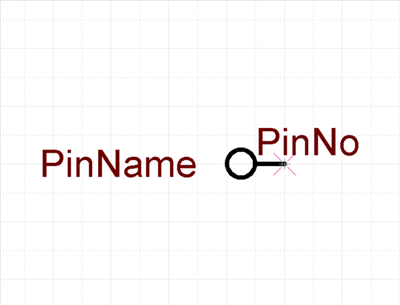
Here, a pin with negative logic (pin with a circle) will be created as a pin creation example.
Completed Pin Drawing
| The following is the operation for creating pins. |
| (1) |
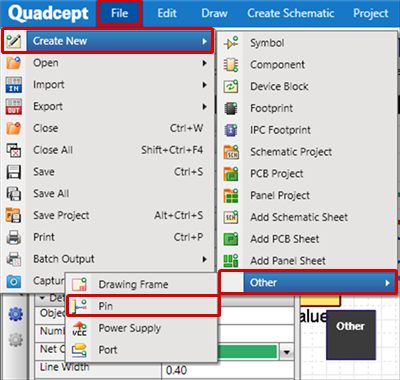
Click [File]
=> [Create New]
=> [Other]
=> [Pin].
=> The pin creation screen will open. |
|
 |
| (3) |
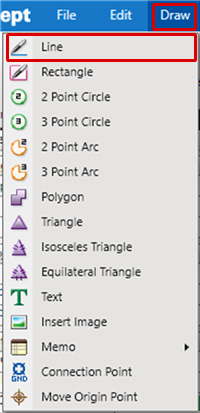
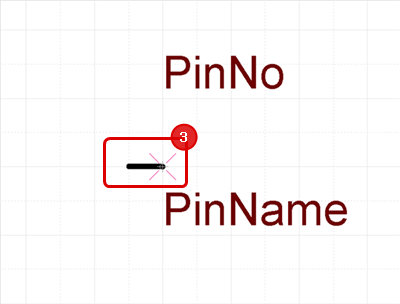
Click the Start Point => Double-click the End Point to draw a line. |
|
 |
| (4) |
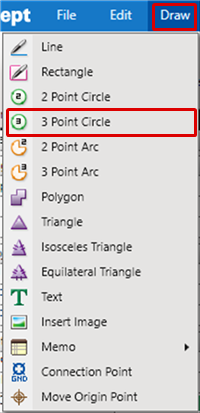
Click [Draw] => [3 Point Circle]. |
|
 |
| (5) |
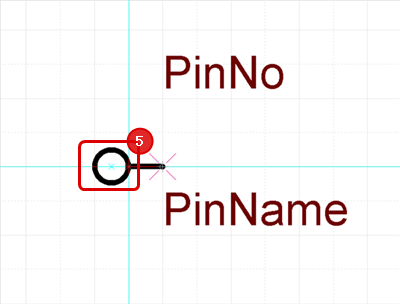
Click Point 1 => Click Point 2 => Click Point 3.
* With a 3 Point Circle, a circle that goes through three specified points is created. |
|
 |
| (6) |
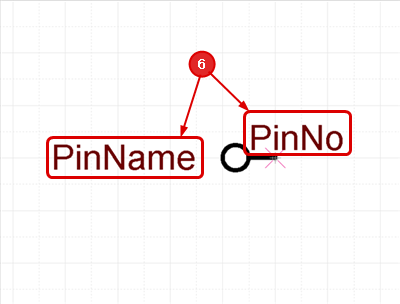
Drag Move the Pin No./Pin Name. |
| |
- The Pin Point initial position is the Origin Point.
- It is also possible to Drag Move a pin point.
- Place the shape, Pin No., and Pin Name so that they do not overlap and are easy to see. |
|
 |
To edit an existing pin, open one by going to the File Menu => [Open] => [Other] => [Pin], correct it, and then execute Save or Save As.